

X-PLAYBOOK
X-OPS Store Operations System — a guide by screen
Quick Search (Ctrl+K)NEW
You don't need to know where a menu lives. Anywhere in the admin console, press Ctrl + K (⌘K on Mac) and type whatever comes to mind. It finds not only screens but individual settings inside screens, and takes you straight to that field.
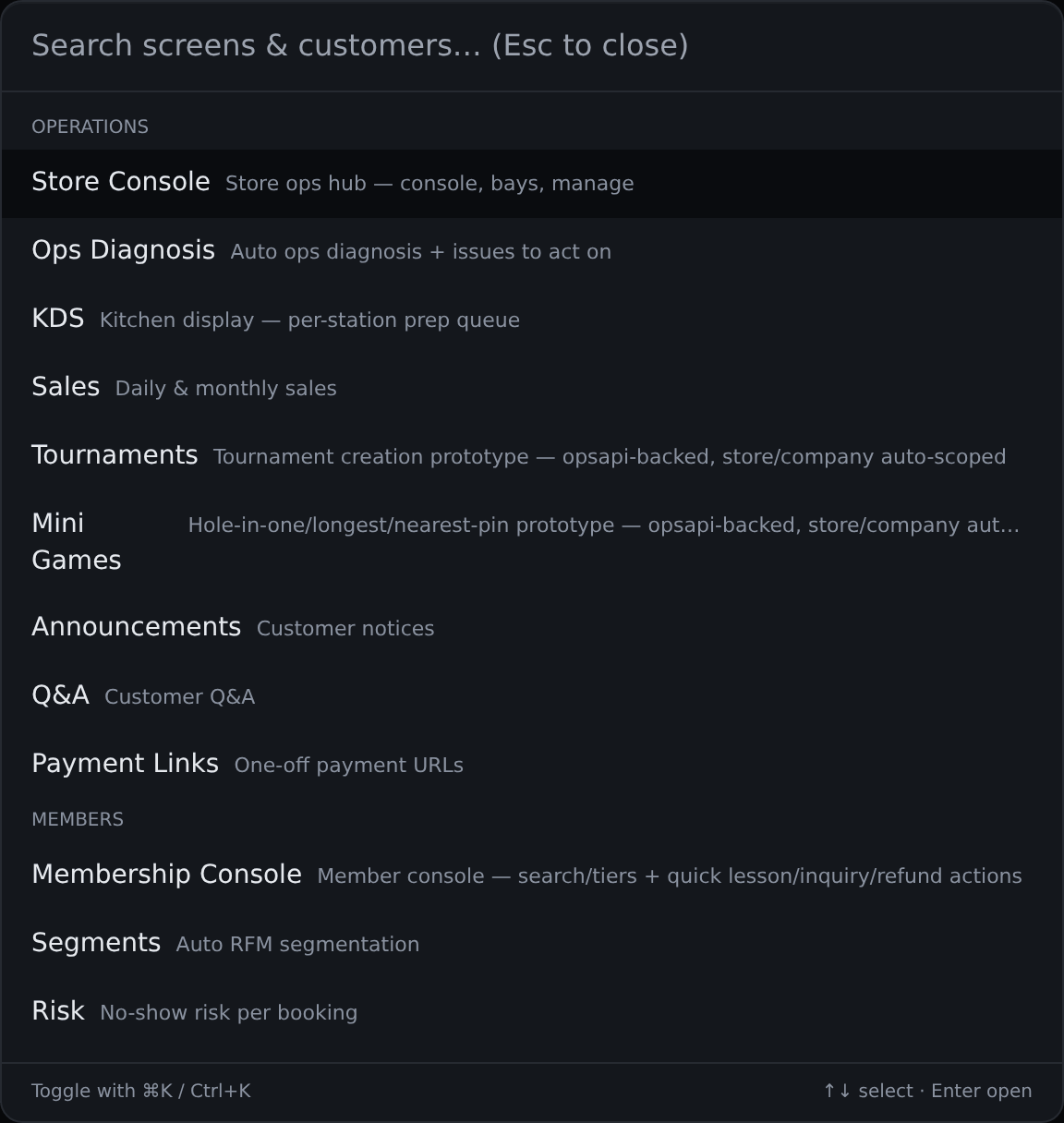
- Ctrl + K → a search box opens at the top
- On mobile or tablet, tap the 🔎 Search button in the top bar instead — the same search box opens; tap a result to go
- Type any word — ‘free’, ‘surcharge’, ‘gold’, ‘receipt’ — it doesn't have to be the exact menu name
- The grey line under each result is where it lives (e.g. Store settings › Store info)
- Pick with ↑↓ and press Enter (or click) → you land on that screen and the field flashes with a border
- Customers — name and phone
- Settings — daily free play, time-band rates, holiday surcharge, coupons, etc.
- Menus — every admin screen
- Other unified search results such as bookings
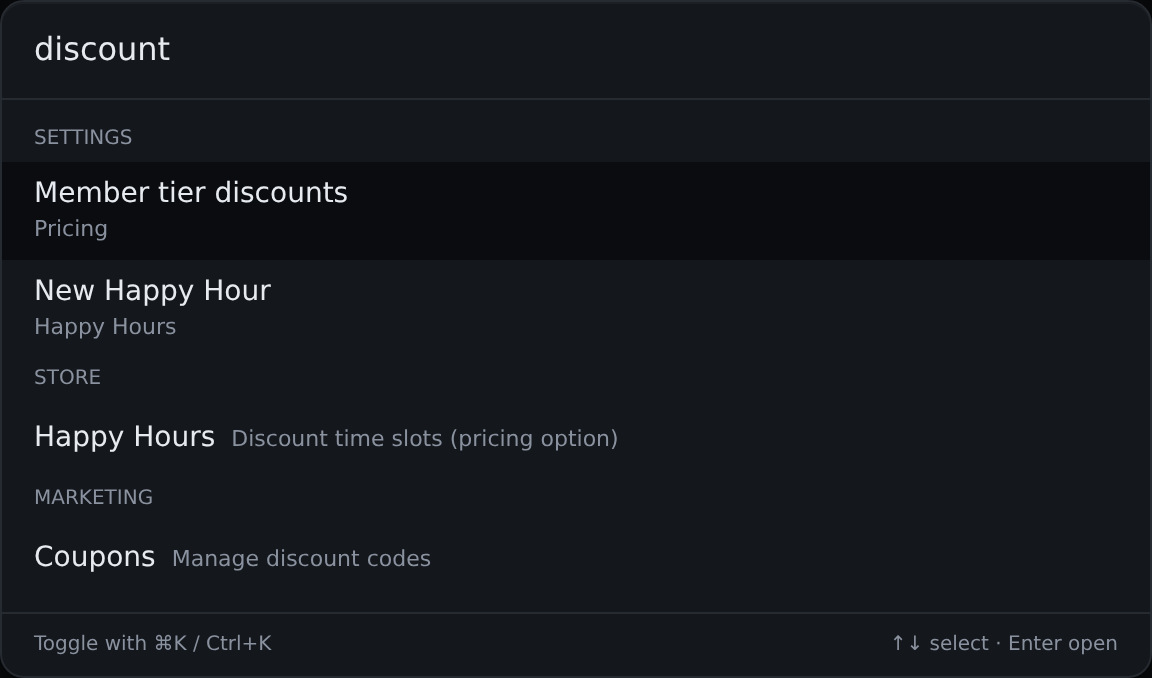
- free → Member daily free play (Store settings)
- night → Time-band rates (Pricing)
- gold → Member tier discounts (Pricing)
- receipt → Business info (Store settings)
Store Console
The Store Console is the main screen a store uses all day. Use the tab bar at the top to move between Console · Store POS · KDS · Bookings · Enquiries · Refunds · Payments — it sits in the same place on every screen. The Console is a single booking board with bays as columns and time slots as rows.
- Drag an open time slot (PC) · tap (mobile) → new booking
- 'Start walk-in' on a bay card → register usage immediately
- Click a booking bar → pay · extend · start · cancel. On PC, drag the bar to move it to another bay · time
- Temporarily save a phone booking with a reception note, and assign it later
- Add products to the cart and check out — scan a barcode, or search and press Enter to add it right away.
- Assign an open bay immediately to start usage right now (instant use, not a future booking).
- At opening, 'Start shift' (opening cash); at the end, 'Close shift' (cash count by denomination + Z report).
- Once per device, pick the counter this POS sits at from the right side of the tab bar.
- Orders appear as tickets by station (Bistro Kitchen · Cafe X Bar · Golf Counter) — pick a station once per device to lock it.
- Tap 'Done' when ready, 'Call' to call the customer. Tickets older than 10 minutes turn red.
- Which product goes to which station is set in 'Prep station' in the Product Catalog.
- View by day · month · list. The day view is the same booking board as the Console; the month view is a heatmap of busy days.
- Search in the list view to handle extend · cancel · refund · no-show.
- 1:1 chat with customers. Pick a conversation from the list on the left and reply on the right.
- Approve or reject refund requests customers submit themselves. This isn't where staff create refunds directly.
- View-only list of completed bay · product payments by period (30/60/90 days, or a custom range).
Health Check
Automatic diagnosis of operational issues + a list to act on right now
- Shows a 0–100 operations score and the issues to handle right now (by severity) — click one to jump straight to the fix screen.
- Automatically diagnoses bay status · today's bookings · unpaid/failed payments · low stock · unread enquiries · staff on duty.
- HQ accounts pick a store from the all-store score cards.
Sales Report
Daily · monthly sales overview
- Pick a period (today · yesterday · 7/30/90 days · this month · last month · custom) to view sales.
- Store accounts open straight to their own store. HQ clicks a store card to switch stores.
Tournament Management (prototype)
Create store tournaments and check the rankings.
- Create a tournament by setting its name · dates · entry limit per player · course(s) (multiple allowed) · prizes by rank.
- Store accounts are registered automatically as the host store. HQ picks the host (HQ/store).
- 'Edit' · 'Delete' from the list. Click a tournament name for its detail screen → 'View ranking' to see the leaderboard (view-only).
Mini-game Management (prototype)
Open mini-games like hole-in-one · longest drive · nearest pin and check the winners.
- Pick one of 12 types and set the name · dates · entry cap · course/hole · prize to create it (ranked types get prizes by rank).
- Change the status (preparing · in progress · done) directly, and 'Edit' · 'Delete' from the list.
- Check the winners on the detail screen ('View ranking' for ranked types).
Notices
Write customer notices
- Write a notice in the 'New announcement' popup and set pin-to-top · expiry date.
- Toggle public/hidden · pinned directly from the list.
Q&A
Customer Q&A management
- Answer customer questions — saving publishes the answer automatically. Hide · delete here too.
Payment Link
Generate a one-time payment URL
- Set an amount · validity period to create a link, then 'Copy Link' and send it via SMS · KakaoTalk to collect a remote payment.
Member Console
The Member Console is where you find and manage your store's members. Use the tab bar at the top to move between Console · Lessons · Points · XGOLF (HQ only).
- Search by name · phone number. Click a summary card (all · golf members · expiring soon · D-7) to filter instantly.
- 'Add customer' signs someone up on the spot (phone · nickname · email required); for many people, use 'Import members' (CSV · Excel). These become HQ members, so double-check the details.
- 'Edit' on a row → golf profile · notes · tags · blacklist · photo.
- Click the points number to see the history + top up · deduct. Points are kept separately per store.
- Customer enquiries · refunds are handled in the Store Console tab bar.
- Register coaches and manage their rate · bio · photo · active status. Booked lessons are shown here too.
- Leave lesson notes per member (progress · video links) — they show up as-is in the lesson history in the customer app.
- Search point earn · use history for all members. Click an entry to top up · deduct right there.
- Search all XGOLF HQ members (a different list from store customers) and edit their basic info (photo · nickname · email · phone · gender).
Segments
Automatic RFM 7-group classification
- Automatically classifies members into 7 groups from visit · purchase data (RFM) and shows a recommended action for each group.
No-show Risk
No-show risk score for each upcoming booking
- Automatically classifies upcoming bookings as safe · caution · high risk (based on past history · payment status · booking time slot).
- Call high-risk bookings ahead of time to confirm.
Churn Risk
Churn risk + revenue loss forecast
- Splits members into stable · watch · at risk · churned and shows the reason alongside.
- Also shows the total projected lost revenue from at-risk members.
Comeback Campaign
Comeback campaign for dormant customers
- Pick at-risk (regulars with no visit in 30–90 days) · dormant (90+ days) members and send them a discount coupon (set discount rate · validity) all at once.
Regular Candidates
Regulars return-visit radar
- Shows existing regulars who are visiting less often than usual as approaching (1×) · delayed (1.5×) · at risk (2.5×).
- Send a comeback coupon one by one, or to every 'at risk' regular at once (currently a mock send until Alimtalk is connected).
Non-member Guests
Customers not linked to an HQ member — tracked by phone number only
- A list of customers identified only by phone number. Search · tags · blacklist work the same as the Member Console (no summary cards · Add customer).
- Sign them up as an HQ member (nickname · email) in 'Edit' and they move to the member list.
Management Console
The Management Console is the entry point for store settings screens. Use the tab bar at the top to move between Stores · Pricing · Products · Bays · Lockers. HQ sees the list of all stores; store accounts go straight to their own store's settings.
- Search by store name, status summary cards (operating · preparing · closed), and 'Columns' to choose table fields.
- Click a store to open its detailed settings (business hours · receipts, etc.). Pricing · bays are edited in their own tabs.
- 'Add store' creates a store + store admin account (login ID · password).
- Manage base rate · time bands (morning · afternoon · night · weekend) · member tier pricing on one screen. Coupons · passes each have their own dedicated screen.
- The same screen as 'Product Catalog' — manage registration · price · prep station (KDS).
- Add · delete bays (bays in use can't be deleted) and set equipment · right/left-handed · options. Print QR signs here too.
- Copy the address to enter on each bay tablet from 'Bay tablet order URL' below.
- Manage assignment · retrieval · expiry by locker status (empty · daily · personal · expiring soon · overdue · maintenance).
Point Products
Point exchange product management
- In the 'Items' tab, register redeemable items (name · emoji · points required · stock).
- In the 'Redemptions' tab, process pending redemptions, or look one up directly by code.
Fixed-term · Session Passes
Define · issue session passes · fixed-term passes
- Create and manage session pass · fixed-term pass types.
- Issuing to a member goes through the payment screen (use 'Issue Free' when no payment is taken). Only customers linked to an HQ member can be issued a pass.
Happy Hour
Discount time band — rate option
- Set days of the week (multiple allowed) · time band · discount rate to register a Happy Hour.
Closures · Holidays
Closures + holiday surcharge — rate option
- Register a date + reason to mark it as closed.
- Set the holiday surcharge rate (%) — it applies only to the currently selected store.
Floor Plan
Edit the store floor plan
- Drag bays to their actual positions, and draw objects like the counter · entrance plus aisles · walls.
- Adjust map · bay size with the slider — it saves automatically.
Screen Programming
Store TV scene layout · booking QR · this month's perks
- Turn store TV scenes on/off and reorder them, and edit display duration · booking QR · this month's perks.
- Check the preview on the right, then press 'Save' at the top for changes to take effect.
Store Photos
Store photos — shown automatically on the store card on the member site (carousel if there are several)
- Upload photos and add captions. Hide/show or delete each photo.
Bay PC Assignment
Bay PC assignment — for setup · replacement
- Find the PC installed at a bay and assign it to the right bay. When replacing it with a new PC, reassign it here.
- Check online status · last communication time. 'Delete' PCs no longer in use (they reappear if they connect again).
- Upload the store image · video shown on the protective screen (curtain) here too (store-wide).
- The complete guide, from installing the bay agent to uploading images · videos for the protective screen:
QR Printing
Bay · kiosk · booking · leaderboard QR printing
- Print QR codes per bay · for kiosks · the booking page · the leaderboard.
Product Catalog
Detailed management of items for sale (F&B · retail)
- Register products by category and manage price · stock · options. The POS · barcode screens use this list as-is.
- Use 'Prep station' to set which KDS receives the order (Bistro Kitchen · Cafe X Bar · Golf Counter). Leave it blank to assign automatically by category.
Inventory
Inventory status · in/out
- Match quantities with receiving (multiple items at once) and per-item 'Adjust' (± quantity + reason). Also check inventory asset value · low-stock alerts.
- Stock is deducted automatically when items sell at the POS.
Purchase Orders
Purchase orders · vendor management
- Create a purchase order with vendor · items · quantity · unit price and track its status (draft · ordered · received · cancelled).
- Press 'Mark received' and stock increases automatically and cost is updated.
Barcode
Barcode · label printing
- Pick a product and print labels for the given quantity. The barcode on the label is for display only and can't be read by a scanner.
Sales Statistics
Daily sales · day-of-week × time-slot booking heatmap
- View daily sales for the last 14 days, and booking counts for the last 30 days as a day-of-week × time-slot heatmap.
- Switch stores with the store cards, or pick 'All' to see the total across all stores.
Bay Stats
Utilization · ratings by bay
- Compare 30-day sales · utilization · ratings per bay as cards.
Send History
Alimtalk · email send history
- View send counts by channel and the last 50 send records (read-only).
Coupons
Discount code management
- Create discount codes (fixed amount or %) with validity period · max uses, and turn them on/off or delete them.
Campaign Rules (HQ only)
Condition-based automatic action rule engine
- Set a condition (no visit for N days · entering a segment · tier upgrade · N days after first visit) and messages · coupons · points go out automatically.
- Use 'Run Now' to run it once immediately.
Broadcast (HQ only)
Send Alimtalk to everyone
- Pick a customer group (all · VIP · by tier · no-show history) and send Alimtalk at once — HQ only; stores can't run it on their own.